Thursday, 5 June 2014

What is SAP

What is SAP (System Applications Products)?
  • SAP is the fourth largest software company in the world.
  • The SAP R/3 system is a business software package designed to integrate all areas of a business.
  • It provides end to end solutions for financials, manufacturing, logistics, distribution etc.
All business processes are executed in one SAP system and sharing common information with everyone.
After the hugely successful R/3, SAP created more and more niche software like Customer Relationship Management (CRM), SRM, XI (now called Process Integration or PI) and once again living up to the standards of SAP by maintaining tight integration with their core ECC software. The newest version of the suite is SAP ECC 6.0.
  • SAP R/3 and R/3 Enterprise
  • mySAP Business Suite
  • SAP ERP
  • SAP Industry Solutions
  • SAP xApps
  • SAP Solution Manager
  • FICO – Finance & Control
  • PP – Production Planning
  • MM – Material Management
  • SD – Sales & Distribution
  • HR – Human Resources
  • ABAP – Advanced business applications programming
  • XI – Exchange Infrastructure
  • Net viewer
  • Basis
  • BIW – Business Information Warehousing
FICO
General Ledger accountingCost Element Accounting
Accounts ReceivablesCost Center Accounting
Accounts PayableProfit Center Accounting              
Asset AccountingInternal Orders
Bank AccountingProduct Cost Controlling
ConsolidationProfitability Analysis
Special Purpose Ledger 
Travel Management 
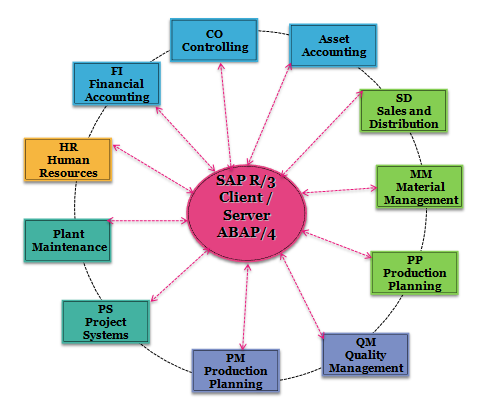
  • SAP manages these business management tasks in modules that all work together in one system by sharing information.
  • Promoting consistent practice across an entire division
  • No duplicate data
  • Automate Project Monitoring and Multi dimensional and flexible reporting
  • Standardization of business processes
  • Make Planning, Scheduling, Tracking and Management easier leaving more time for you to perform value-added work
  • Ability to provide clear cut job roles with authorizations
  • Enabling integration with e-commerce
  • Cost Savings on overheads such as Stationery, File Storage, etc
  • Multi-Lingual
  • Secure Information
  • Multi-Currency
  • Best business Practice
  • Enterprise-Wide
  • Real time processing with an integrated suite of client/server applications

The following articles guides you everything about SAP ERP Systems. The first question which arises in our mind “what is SAP” ? and what is SAP ERP software?, which is the best SAP module and which module has a best scope for bright future ?? 
What does SAP stands for – SAPstands for Systems, Applications and Products in data processing.
 SAP is an Enterprise Resource Planning (ERP) system by SAP AG, company based out of Walldorf in Germany. AG is derived from the German word AKtiengesellschaft.  According to German Language SAP Stands for Systeme, Anwendungen und Produkte in Der Datenverarbeitung. SAP software suite that is being implemented as part of re-engineering and Provides end to end solutions for financial, logistics, distribution, inventories. Present scenario large number of companies are using sap software for their day to day business activities.
SAP History 
SAP Founded in and around 1972 by five IBM engineers Hopp,  Wellenreuther, Hector, Tschira and Plattner.
SAP R/1 :- The first version of SAP was launched in and around 1972  known as the “R/1 system. R” stands for real-time data processing. it is one tier architecture in which three layers Presentation, Application and Database are installed in one system/server
(one – Presentation + Application + Database)
SAP R/2 :- In 1979 second version of SAP R/2 was released. with IBM’s database and a dialogue-oriented business application. SAP R/2 to handle different languages and currencies. R/2 is 2 tier architecture in which three layers Presentation, Application and Database are installed in two separate server.
(Server one – Presentation, Server two – Application + Database
SAP R/3 :- SAP upgraded R/2 to R/3. SAP R/3 is the client/server version of the software and it is 3 tier architecture in which three layers Presentation, Application and data base are installed in three server/system.
Server one – Presentation, Server Two – Application, server Three – Database
Products of SAP
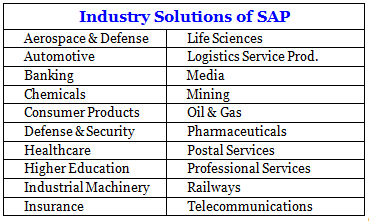
Industry Solutions of SAP
What is SAP? ERP System Definition
SAP R/3 – Modules & Integration
What is SAP? ERP System Definition
SAP Functional Modules
SAP Technical Modules
What is SAP FICO ? 
SAP FICO Stands for FI (Financial Accounting) and CO (Controlling). SAP FICO is the imp module of ERP and both Finance and Controlling modules stores the financial transactions data. The ‘FI (Financial Accounting)’ records, collects, and processes financial transactions or information on a real-time basis to provide the necessary inputs for external (statutory) reporting purpose. SAP CO plays an important role for the management decision making purpose and for the internal reporting purpose.Read More
FICO contains the following sub-modules.
SAP MM ( Material Management ) is one of the imp module in SAP ERP software and it supports the procurement and inventory functions occurring in day-to-day business operations. This MM module contains many aspects such as purchasing, goods receiving, material storage, consumption-based planning, and inventory. SAP MM module is fully integrated with other modules in the SAP R/3 System such as FICO, SD, QM, PM, PP, and WM. Read More 
SAP PP
The Production Planning  application module is used to plan and control the manufacturing activities of a company. consists of all system configuration, master data, , and complete solution to Produce process
SAP SD ?
SAP SD ( Sales and Distribution ) is important module of SAP and it is a part of logistics.  The main activities of SD are sales order handling, distribution of shipments to customers, billing process, customer invoice, delivery.SD module is fully integrated with other modules in the SAP R/3 System such as Finance, Purchasing(MM), Production Planning(PP). Read More
What is SAP HR ?
SAP Human Resources manages complete employee life cycle and payroll. All aspects are covered from training to appraisal.
Advantages of SAP :-
Why – SAP R/3 has been successful

Wednesday, 4 June 2014

The technology behind Google's great results

The technology behind Google's great results
As a Google user, you're familiar with the speed and accuracy of a Google search. How exactly does Google manage to find the right results for every query as quickly as it does? The heart of Google's search technology is PigeonRank™, a system for ranking web pages developed by Google founders Larry Page and Sergey Brin at Stanford University.
PigeonRank System
Building upon the breakthrough work of B. F. Skinner, Page and Brin reasoned that low cost pigeon clusters (PCs) could be used to compute the relative value of web pages faster than human editors or machine-based algorithms. And while Google has dozens of engineers working to improve every aspect of our service on a daily basis, PigeonRank continues to provide the basis for all of our web search tools.
Why Google's patented Pigeon Rank™ works so well
PigeonRank's success relies primarily on the superior trainability of the domestic pigeon (Columba livia) and its unique capacity to recognize objects regardless of spatial orientation. The common gray pigeon can easily distinguish among items displaying only the minutest differences, an ability that enables it to select relevant web sites from among thousands of similar pages.
By collecting flocks of pigeons in dense clusters, Google is able to process search queries at speeds superior to traditional search engines, which typically rely on birds of prey, brooding hens or slow-moving waterfowl to do their relevance rankings.
diagramWhen a search query is submitted to Google, it is routed to a data coop where monitors flash result pages at blazing speeds. When a relevant result is observed by one of the pigeons in the cluster, it strikes a rubber-coated steel bar with its beak, which assigns the page a PigeonRank value of one. For each peck, the PigeonRank increases. Those pages receiving the most pecks, are returned at the top of the user's results page with the other results displayed in pecking order.
Integrity
Google's pigeon-driven methods make tampering with our results extremely difficult. While some unscrupulous websites have tried to boost their ranking by including images on their pages of bread crumbs, bird seed and parrots posing seductively in resplendent plumage, Google's PigeonRank technology cannot be deceived by these techniques. A Google search is an easy, honest and objective way to find high-quality websites with information relevant to your search.
Data
PigeonRank Frequently Asked Questions
How was PigeonRank developed?
The ease of training pigeons was documented early in the annals of science and fully explored by noted psychologist B.F. Skinner, who demonstrated that with only minor incentives, pigeons could be trained to execute complex tasks such asplaying ping pong, piloting bombs or revising the Abatements, Credits and Refunds section of the national tax code.
Brin and Page were the first to recognize that this adaptability could be harnessed through massively parallel pecking to solve complex problems, such as ordering large datasets or ordering pizza for large groups of engineers. Page and Brin experimented with numerous avian motivators before settling on a combination of linseed and flax (lin/ax) that not only offered superior performance, but could be gathered at no cost from nearby open space preserves. This open space lin/ax powers Google's operations to this day, and a visit to the data coop reveals pigeons happily pecking away at lin/ax kernels and seeds.
What are the challenges of operating so many pigeon clusters (PCs)?
Pigeons naturally operate in dense populations, as anyone holding a pack of peanuts in an urban plaza is aware. This compactability enables Google to pack enormous numbers of processors into small spaces, with rack after rack stacked up in our data coops. While this is optimal from the standpoint of space conservation and pigeon contentment, it does create issues during molting season, when large fans must be brought in to blow feathers out of the data coop. Removal of other pigeon byproducts was a greater challenge, until Page and Brin developed groundbreaking technology for converting poop to pixels, the tiny dots that make up a monitor's display. The clean white background of Google's home page is powered by this renewable process.
Aren't pigeons really stupid? How do they do this?
While no pigeon has actually been confirmed for a seat on the Supreme Court, pigeons are surprisingly adept at making instant judgments when confronted with difficult choices. This makes them suitable for any job requiring accurate and authoritative decision-making under pressure. Among the positions in which pigeons have served capably are replacement air traffic controllers, butterfly ballot counters and pro football referees during the "no-instant replay" years.
Where does Google get its pigeons? Some special breeding lab?
Google uses only low-cost, off-the-street pigeons for its clusters. Gathered from city parks and plazas by Google's pack of more than 50 Phds (Pigeon-harvesting dogs), the pigeons are given a quick orientation on web site relevance and assigned to an appropriate data coop.
Isn't it cruel to keep pigeons penned up in tiny data coops?
Google exceeds all international standards for the ethical treatment of its pigeon personnel. Not only are they given free range of the coop and its window ledges, special break rooms have been set up for their convenience. These rooms are stocked with an assortment of delectable seeds and grains and feature the finest in European statuary for roosting.
What's the future of pigeon computing?
Google continues to explore new applications for PigeonRank and affiliated technologies. One of the most promising projects in development involves harnessing millions of pigeons worldwide to work on complex scientific challenges. For the latest developments on Google's distributed cooing initiative, please consider signing up for our Google Friends newsletter.

ISO to USB

Create bootable USB drives the easy way

It can be especially useful for cases where:
  • you need to create USB installation media from bootable ISOs (Windows, Linux, UEFI, etc.)
  • you need to work on a system that doesn't have an OS installed
  • you need to flash a BIOS or other firmware from DOS
  • you want to run a low-level utility
When you choose to download most software from the Microsoft Store, you have the option of using Download Manager or downloading from your browser. However, when you purchase Microsoft Windows 7 from Microsoft Store, you have an additional choice to make: whether to download a collection of compressed files or to download an ISO file. An ISO file combines all the Windows 7 installation files into a single uncompressed file.
These instructions are for Windows 7 only. If you're looking for instructions about downloading Windows 8, click here.
If you choose to download an ISO file (so that you can create a bootable file from a DVD or USB flash drive), copy your Windows 7 ISO file onto your media and, run the Windows 7 USB/DVD Download Tool. After you do this, you can install Windows 7 onto your computer directly from the USB flash drive or DVD.
NOTE: When you download the ISO file, you must copy the file onto a USB flash drive or a DVD to install Windows 7. When you're ready to install Windows 7, insert the USB flash drive into your USB port or insert your DVD into your DVD drive, and then run Setup.exe from the root folder on the drive.
The advantage to following this process and creating bootable media is that it allows you to install Windows 7 without having to first run an existing operating system on your machine. If you change the boot order of drives in your computer's BIOS, you can run the Windows 7 installation directly from your USB flash drive or from a DVD when you first turn your computer on. (Please see the documentation for your computer for information about how to change the BIOS boot order of drives.)

Copies

  • To install the software, you may make one copy of the ISO file on a disc, USB flash drive, or other media.
  • After you’ve installed the software and accepted the license terms that accompany the software, those license terms apply to your use of the software. The license terms for Windows 7 permit you to make one copy of the software as a back-up copy for re-installation on the licensed computer. If you do not delete your copy of the ISO file after installing the Windows 7 software, the copy of the ISO file counts as your one back-up copy.
If you need to download the software again, you can go to your Download Purchase History in your Microsoft Store account and access the download there.

Installation

To install the Windows 7 USB/DVD Download tool:
  1. Click to open the Windows 7 USB/DVD Download tool installation file.
  2. When you are prompted to either save the file to disk or run it, choose Run.
  3. Follow the steps in the setup dialogs. You'll have the option to specify where to install the Windows 7 USB/DVD Download Tool.
NOTE: You need to be an administrator on the computer you are installing the Windows 7 USB/DVD Download tool on. The tool requires the Microsoft .NET Framework version 2.0 or higher.
System requirements
  • Windows XP SP2, Windows Vista, or Windows 7 (32-bit or 64-bit)
  • Pentium 233-megahertz (MHz) processor or faster (300 MHz is recommended)
  • 50MB of free space on your hard drive
  • DVD-R drive or 4GB removable USB flash drive
For Windows XP users
The following applications must be installed prior to installing the tool:
  • Microsoft .NET Framework 2.0 must be installed. It can be downloaded here.
  • Microsoft Image Mastering API v2 must be installed. It can be downloaded here.

Using the Windows 7 USB/DVD download tool

Before you run the Windows 7 USB/DVD Download Tool, make sure you have already purchased the Windows 7 ISO download from Microsoft Store and have downloaded the Windows 7 ISO file to your hard drive. If you have purchased Windows 7 but have not yet downloaded the ISO file, you can download the file from your Microsoft Store Account.
To make a copy of your Windows 7 ISO file:
  1. Click the Windows START button, and click WINDOWS 7 USB/DVD DOWNLOAD TOOL in the ALL PROGRAMS list to open the Windows 7 USB/DVD Download Tool.
  2. In the SOURCE FILE box, type the name and path of your Windows 7 ISO file, or click BROWSE and select the file from the OPEN dialog box. Click NEXT.
  3. Select USB DEVICE to create a copy on a USB flash drive or select DVD disk to create a copy on a DVD disk.
  4. If you are copying the file to a USB flash drive, select your USB device in the drop-down list and click BEGIN COPYING. If you are copying the file up to a DVD, click BEGIN BURNING.
When your Windows 7 ISO file is copied onto your chosen media, install Windows 7 by moving to the root folder of your DVD or USB flash drive, and then double-click Setup.exe.

Frequently asked questions

The following are frequently asked questions about using the Windows 7 USB/DVD Download Tool:
Where can I download .NET framework 2.0?
The .NET framework can be downloaded here.
Where can I download Image Mastering API 2.0?
The Image Mastering API can be downloaded here.
What size USB flash drive is required?
You need a USB flash drive with a minimum of 4 GB of free space.
Can I use my newly created USB drive to install Windows 7 on someone else's computer?
No. The Windows 7 ISO file on the USB flash drive is only intended to be used to install Windows 7 on the licensed user’s own computer.
Can I backup to a CD-ROM?
No. The Windows 7 ISO file is too large to fit on a CD.
Can I backup to a Blu-Ray DVD disk?
Yes, as long as your DVD drive can write to a Blu-Ray DVD.
If I have other files on the USB flash drive will the Windows 7 USB/DVD download tool delete them?
This tool requires the USB flash drive to be completely blank before the Windows 7 files are copied. This helps ensure that the device is bootable after the copying has completed.
Can I backup to an iPod, camera, or other device with enough free disk space?
Yes, but this is not recommended.
  • The device must be formatted in order for the device to be bootable.
A dedicated USB flash drive would be a better option.
Can I use the Windows 7 USB/DVD Download Tool to backup other files?
No. This tool is only for use with the Windows 7 ISO file purchased from Microsoft Store.
Does the tool support dual-layer DVD discs for burning?
No. Currently, the tool does not support dual-layer DVD discs.

Troubleshooting

The following tips might help if you run into a problem using this tool.
The tool is requested that I install the .NET framework and Image Mastering API before I install the tool
For users running Windows XP, you must install the .NET Framework 2.0 and the Image Mastering API 2.0 before installing the tool. You can download .NET framework here and you can download the Image Mastering API here.
Please note that a restart may be required after installing the .NET framework and the Image Mastering API.
When creating a bootable USB device, I am getting an error about bootsect
To make the USB device bootable, you need to run a tool named bootsect.exe. In some cases, this tool needs to be downloaded from your Microsoft Store account. This may happen if you're trying to create a 64-bit bootable USB device from a 32-bit version of Windows. To download bootsect:
  1. Login to your Microsoft Store account to view your purchase history
  2. Look for your Windows 7 purchase.
  3. Next to Windows 7, there is an "Additional download options" drop-down menu.
  4. In the drop-down menu, select "32-bit ISO."
  5. Right-click the link, and then save the bootsect.exe file to the location where you installed the Windows 7 USB/DVD Download Tool (e.g. C:\Users\username\AppData\Local\Apps\Windows 7 USB DVD Download Tool).
  6. Once the file has been saved, go back to the Windows 7 USB/DVD Download tool to create your bootable USB device.
My USB device is not in the list of available devices
If you don't see your USB flash drive in the list of available devices, please make sure the drive is inserted in the USB port, and then click the Refresh button beside the list of available drives.
I inserted a blank DVD in my DVD-ROM drive, but the Windows 7 USB/DVD Download Tool doesn't recognize it
If there are multiple drives on the system, the tool will select the first one that is capable of burning DVDs. If you have multiple DVD-R drives, try inserting the blank DVD into another DVD-R drive. If that doesn't help, please make sure that your disc isn't damaged and that your DVD-R drive is operational. Contact Product Support if issues continue to arise.
Inserted a blank DVD in my DVD-ROM drive, but the tool won't let me burn it
Make sure the disc isn't a dual-layer DVD disc. Currently, dual-layer discs are not supported within the tool.